
Join an event on your phone
No app and no account. It takes about a minute.
Join
- With mobile data on, scan the event QR with your phone’s camera and open the link.
- Open your phone’s Wi-Fi settings and join the network shown on the page. Copy password copies the password for you.
- If your phone says this Wi-Fi has no internet, choose to stay connected.
- Turn mobile data off.
- Go back to the page and tap Open Gallery.
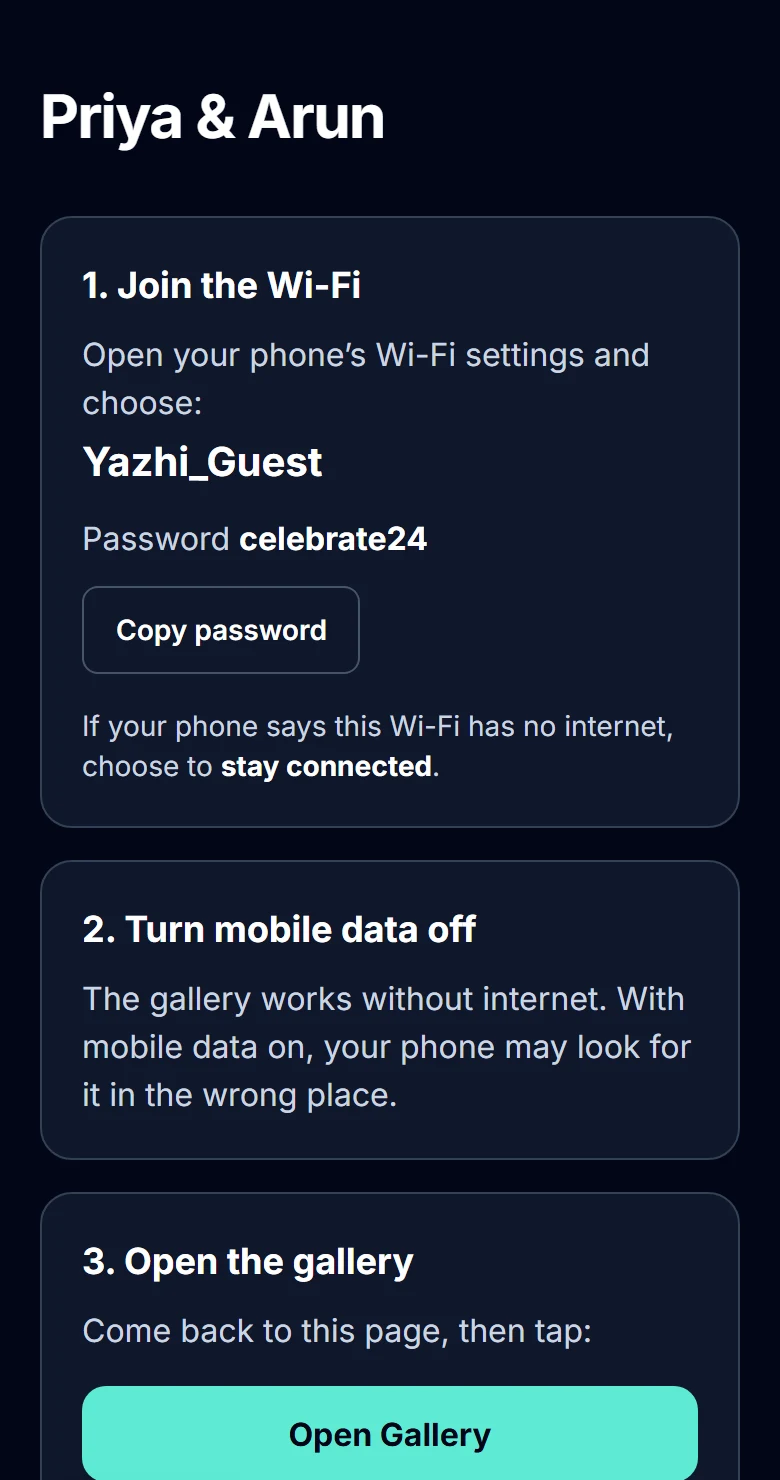
On some events the steps are shorter, because the venue’s own Wi-Fi is used. Follow the page.
If the gallery does not open
- Check that you are on the Wi-Fi named on the page.
- Make sure mobile data is off.
- iPhone: Settings → Wi-Fi, choose the event network. If asked, choose Keep trying Wi-Fi or Use without internet.
- Android: if asked whether to stay connected, choose Yes. If Private DNS is on, set it to Off or Automatic.
- Turn off any VPN.
- Tap Check again. If it still does not work, ask the event staff.
Share and save photos
- Tap the camera button in the gallery and choose a photo. Photos only, no videos.
- The photographer checks photos first, so yours may take a while to appear.
- Tap a photo to see it large, like it or save it.
- You can delete a photo you uploaded.
After the event
The gallery closes when the event ends. Save the photos you want before you leave. Turn mobile data on again and forget the event Wi-Fi.
Photos stay with the photographer. To have a photo removed, ask the photographer or studio. How YazhiSnap handles data.