
Fix a problem
Find the message or problem, then try the steps in order.
Start does not work
| What you see | What to do |
|---|---|
| This laptop can’t reach the internet | Connect the laptop to your phone’s hotspot or the venue Wi-Fi. Open any website to check. |
| This laptop’s Wi-Fi did not get an internet address | Turn the laptop’s Wi-Fi off and on, or reconnect to your phone’s hotspot. |
| This is a Cloud key | Cloud keys open client galleries. Choose an Event key. |
| The Yazhi Router isn’t answering | Check the power and the network cable to this laptop, wait a minute, then try again. |
| Windows Mobile hotspot is already on | Turn it off in Windows Settings → Mobile hotspot, wait a few seconds, then try again. |
| This laptop’s Wi-Fi can’t run a hotspot right now | Use the Yazhi Router or venue Wi-Fi. |
| Only … is free on the drive | Free some space, or choose another drive in Settings → Photo storage. |
A guest cannot open the gallery
- Is the phone on the event Wi-Fi, not another one? Forget other networks it keeps choosing.
- Is mobile data off? With mobile data on, phones often look for the gallery in the wrong place.
- If the phone says the Wi-Fi has no internet, choose to stay connected.
- Tap Check again on the join page.
- Turn off any VPN, or Private DNS on Android.
- Still no? Choose Show QR in YazhiSnap, then Help a guest who can’t load the join page, and use the local backup QR.
If no guest can open it on venue Wi-Fi, the venue is probably blocking phones from the laptop. Ask them to allow it, or use the router or hotspot.
Messages during an event
| What you see | What to do |
|---|---|
| Restarting the gallery… | Wait. Guests’ pages come back by themselves. |
| The gallery stopped and could not restart yet | YazhiSnap keeps trying. If it stays red, close and reopen YazhiSnap; the event resumes. |
| The laptop hotspot is off because the phone’s hotspot disconnected | Turn your phone’s hotspot back on. The laptop hotspot restarts by itself. |
| The laptop hotspot is off and could not restart yet | Check that the laptop’s Wi-Fi is on. It keeps trying. |
| The venue Wi-Fi lost its internet | New guests cannot join until it returns, and it continues by itself then. Ask the venue to check it. |
| This laptop is no longer on the event’s venue Wi-Fi | Reconnect the laptop to the same Wi-Fi. |
| The laptop battery is at … % | Plug in the charger. |
| Only … is free on the drive that stores this event’s photos | Free space now, or new photos cannot be saved. |
Photos and uploads
- My photo is not in the gallery. Look in Pending and approve it, or turn on Auto-Crew.
- A RAW file does not appear. Only JPEG, PNG and WebP photos are used. Your RAW files stay in the folder.
- A guest’s upload is waiting. Keep the page open. It continues when the gallery answers.
- Cloud upload stopped. Check the internet and start it again. Photos already uploaded are skipped.
- A client cannot open the gallery. Check the PIN, and that it is within 7 days of activation.
The laptop or app closed during an event
Open YazhiSnap again with the same sign-in. The event resumes if it is within its 12 hours. If it cannot, choose Try again or End event. Photos already saved stay on the laptop.
Send us diagnostics
- Open Settings → Support and choose Copy diagnostics.
- A file named YazhiSnap-diagnostics-….txt is saved in your Downloads folder. Show file opens the place.
- Send it to us on WhatsApp with the event date and what happened.
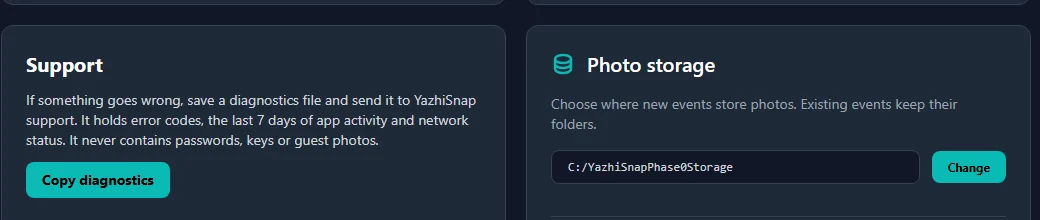
The file holds error codes, the last 7 days of app activity and network status. It never contains passwords, keys or guest photos.
If an event could not start because of a fault in YazhiSnap or our service, we give you a replacement key of the same kind.